
Help & Support
Need a person? Email support@gethonesthockey.com and we will get back to you, usually within one business day. Tell us what you were doing, what happened, and whether you are on an iPhone, an Android or a computer. A screenshot helps.
Please do not include a player's personal details. We only need the parent's or coach's contact and what is happening.
Everything below is written out step by step, and each walkthrough has the same thing on video if you would rather watch it. Pick whichever suits you.
Setting up your team
For coaches. Watch the walkthrough → (2 minutes)
- Create your team. Name it, and the app makes your team code for you. Add your logo and colors so it looks like your team.
- Build your program. It comes in five steps: off ice fitness, off ice stretching, shooting and stick work, a goalie track, and the plays. It loads fully built with a target on everything, and it names itself In-Season or Off-Season depending on the time of year. Adjust any of it, or build your own.
- Turn on the plays you want. Every play starts switched off for your players, on purpose. Open Program, step 5, and turn on one, or five, or all of them. Your players only ever see what you turn on.
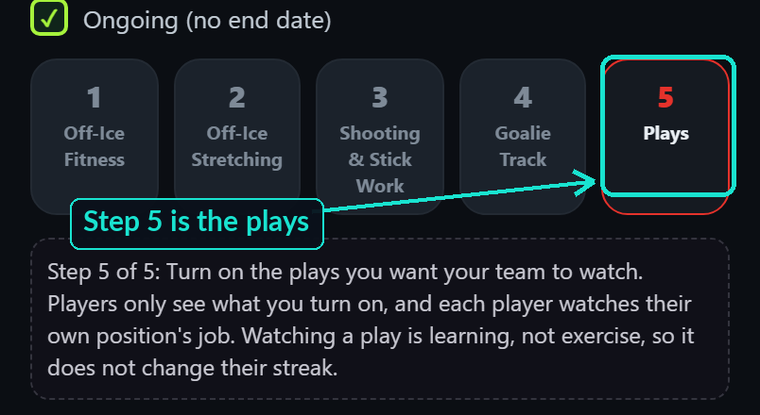
Program, step 5. Each play has its own switch. - Invite your team. Open the Roster tab. Your team code sits at the top in large type. Either drop that code into your team group chat, or scroll to Invite parents, paste your address list into the box, and tap Open email invite. Your own mail app opens with the letter already written and your code in it. Check the From line, then send it.
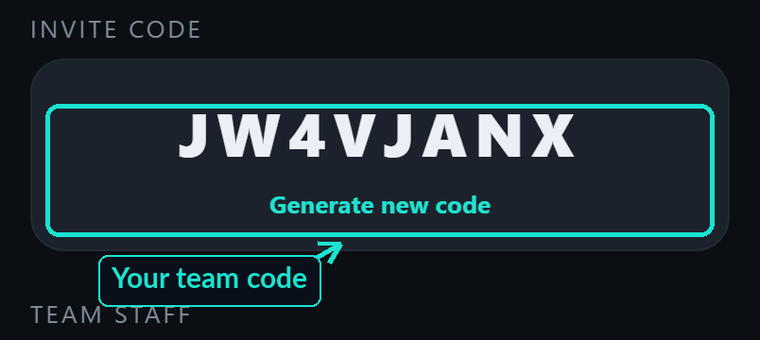
Top of the Roster tab. This is the code they enter. 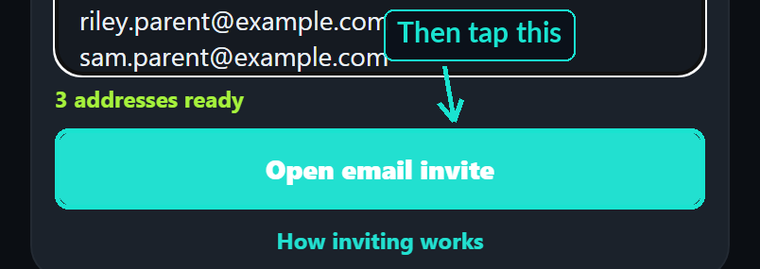
Paste your parent list, then tap Open email invite. Your own mail app opens next, and you send it. - Watch the work come in. Your Dashboard shows team totals, who logged this week, and consistency over time. Tap any player to see their own logs, streak and progress.
Who you invite depends on your roster. Players 16 and over can use the team code themselves. For anyone younger it goes to a parent, and every message you send sits in the app where that parent can see it.
Setting up your player
For parents. Watch the walkthrough → (under 2 minutes)
- Create your account with your own email and a password. The account is yours, and your player's sits inside it.
- Give your consent. For a player under sixteen you consent first. Nothing happens until you do.
- Add your player. Put your coach's team code in first, then your player's first name, last initial, birthday and position. The team code is what puts them on your coach's roster. No code? Leave it blank, it works on its own too.
- Set them a username and a 6-digit PIN. Do this on your own device, it takes about thirty seconds. This is how your player signs in from then on, and it is the reason they never need an email address of their own. You will also see a one-time code on that screen, and you do not need it once you have set the PIN.
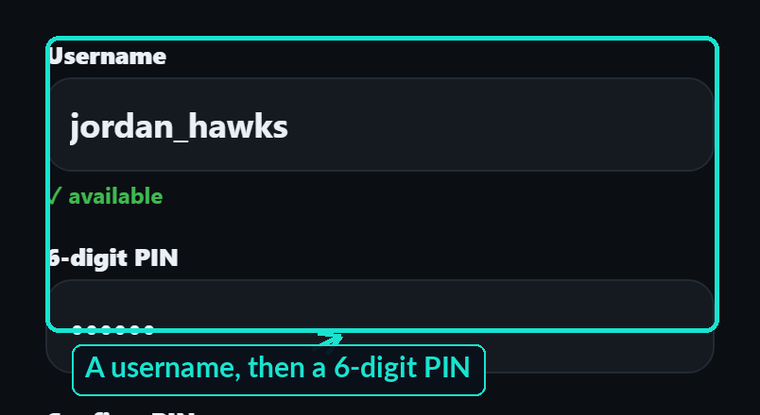
Pick anything they will remember. The PIN is six digits. - Your player signs in. On their own device, a phone, a tablet or a laptop, they open Honest Hockey and tap “Player signing in? Tap here” at the bottom of the first screen, then enter the username and PIN you set. Create an Account is for parents and coaches, not for them.
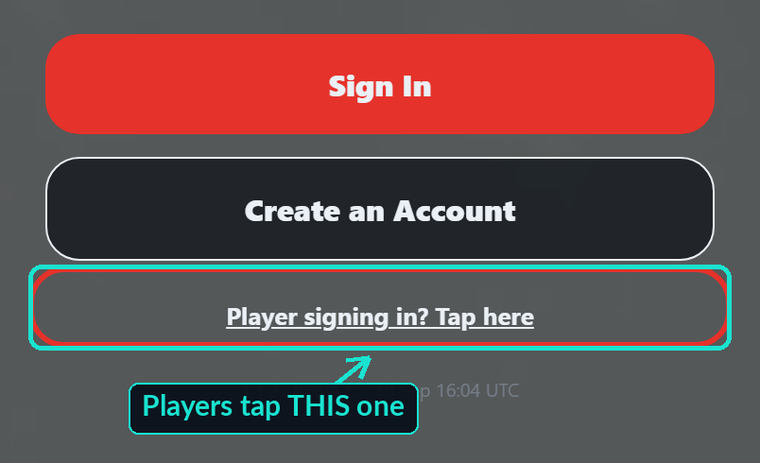
The bottom line, not the button above it. This is the one families get wrong.
Your side is deliberately different. You see everything they do, and you do not do it for them. Every message between your player and their coach sits where you can read it.
Using it
For players. Watch the walkthrough → (under 90 seconds)
- There are two halves to it. The plays your coach wants you to learn, and the off ice training you do on your own.
- Start with the plays. The ones your coach turned on are sitting right on your home screen.
- The play library has the rest, laid out the way you think about the game: neutral zone, breakouts, forecheck, offensive zone, power play, penalty kill and defense.
- Pick your position and you hear your own job inside the play. Watch the same play twice from two different spots and it becomes a different play. That is the whole idea.
- Your plan is shooting, stickhandling, off ice fitness and stretching, with a target on each.
- Log it yourself and confirm it yourself. Nobody is checking up on you.
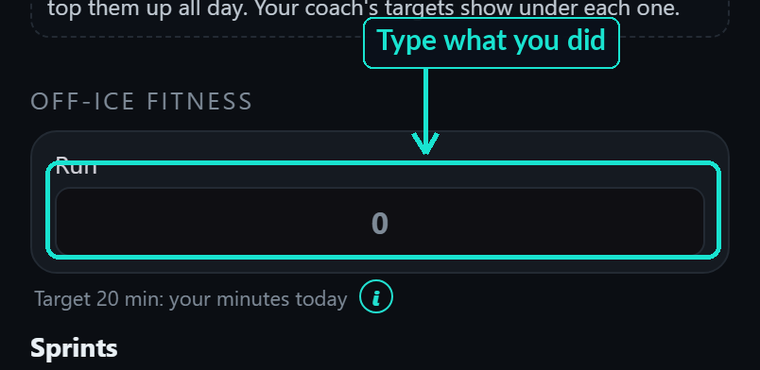
Tap the box under each one and type what you did. - Progress is this week against last week, your last six weeks, and your whole program so far. Badges unlock as you keep showing up.
This is not about beating your teammates, or being measured against them. There are no leaderboards and no rankings. It is your own progress, tracked honestly.
Questions people ask
How do I set up my player?
The five steps are under Setting up your player above, and the same thing is on video there. The short version: create your own account, give consent, add your player with your coach's team code, set them a username and a 6-digit PIN, then have them sign in on their own device with that username and PIN.
My player cannot sign in.
No problem, and you never need to remember a code. As the parent, open your player in the app, go to Manage account, and set a new username and PIN. Give those to your player and they are back in.
Why can't my player log training yet?
For players under 16, a parent has to approve them first. Until you approve, they can look around but cannot log training or message a coach. Once you approve from your parent account, everything unlocks. This gate is on purpose, it keeps younger players safe.
My players cannot see any plays.
Plays start switched off for everyone, and the coach chooses which ones the team studies. Coaches: open Program, step 5, and turn on the plays you want. Players only see what their coach has turned on.
I am a coach, how do I set up my team?
The five steps are under Setting up your team above, with the video. Your team trial starts the moment you name your team, and there is no credit card on it.
How do I manage or cancel my subscription?
Manage or cancel your plan any time on your billing page. Enter the email you signed up with and you get a secure link by email, so there is no extra password to remember. From there you can see your invoices, update your card, or cancel. Cancelling stops the next payment, and you keep access until the end of the period you have already paid for.
Is my player's data private?
Yes. A player's information is seen only by their own parent and their coach, never other families. There are no leaderboards, no rankings, no ads, and we never sell your data. Parental consent is built into signup for minors. See our Privacy Policy for the details.
The app isn't working, or I think I found a bug.
We want to hear about it. Email support@gethonesthockey.com with what you were doing, what happened, and your device, with a screenshot if you can. We read every message.